Every spring, a high school sprint coach somewhere ends up with the same pile of loose material. Parents post a hurdle clinic on a public Snapchat Spotlight clip. A former athlete shares a start-block drill in a public Story. A teammate films a relay handoff and it turns up on the feed. The footage is useful, but it lives on a phone app, it disappears, and the stadium bleachers have terrible signal.
This guide follows that coach through a simple routine for saving public clips she has permission to keep, using a free browser tool called EzyDownload. We will go one step at a time, and we will say plainly where the tool helps and where it does not.
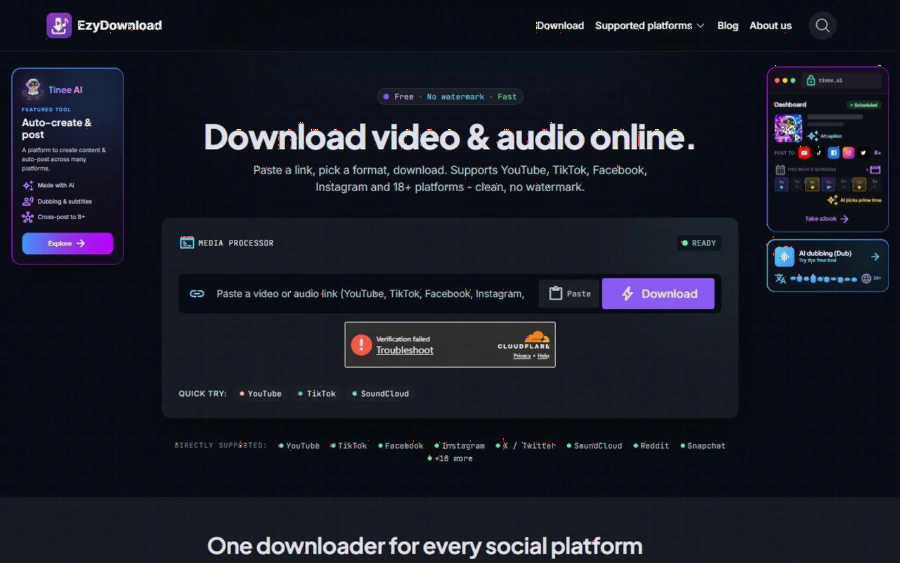
EzyDownload homepage with a link box, a download button and a list of directly supported platforms including Snapchat
The scenario: a coach, a spring season and no signal
Our coach runs a small athletics club. Her goals are modest. She wants a handful of short clips of her own athletes, shared publicly with their consent, so she can replay them on a laptop during a Monday video review. She also wants a few public technique demonstrations from coaches who are happy for people to study their work.
She does not want to install software on the club's shared computer, create another account or pay for a subscription. A tool that runs in a browser tab and asks for nothing up front suits a volunteer coach with a tight evening.
What the tool does, according to its own pages
EzyDownload describes itself as a place to download video and audio online. You paste a link, pick a format and download. The homepage says it supports YouTube, TikTok, Facebook, Instagram and more than 18 platforms in total, and Snapchat appears in the list of directly supported sites.
Its dedicated page for Snapchat is narrower and more useful for this job. It says it supports public Spotlight videos and Stories, that no Snapchat login or app install is needed, and that downloaded files are clean, with no logo or text added. Video comes as MP4 (H.264/AAC) with options from 4K down to 360p, and audio as MP3 at 128, 192 or 320 kbps. We read all of this on the site and did not stress test it, so treat it as the vendor's description. The page does not say which resolutions a given Snapchat clip actually offers, so the quality list is a general menu rather than a promise.
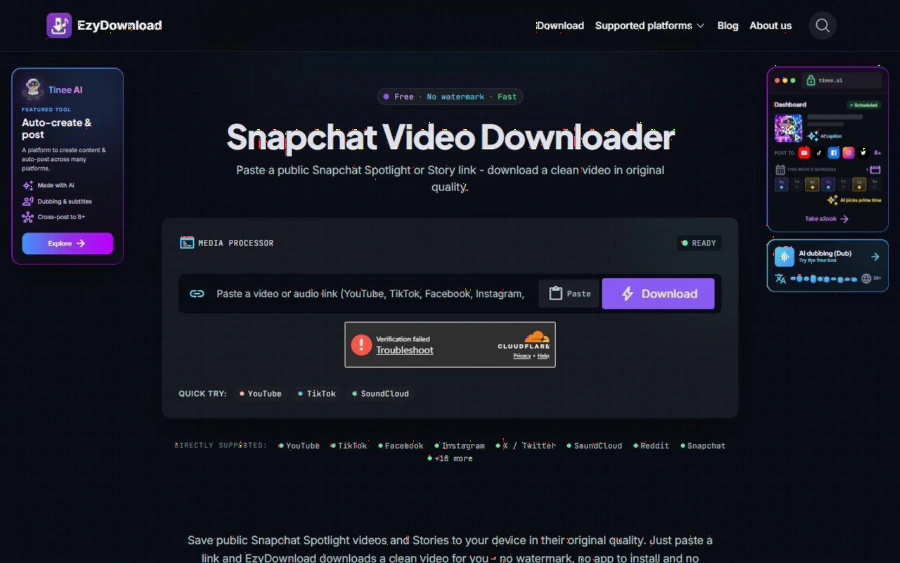
EzyDownload Snapchat Video Downloader page asking for a public Spotlight or Story link
Step by step: from a Spotlight link to a file on the laptop
Here is the routine the coach settled on. The steps follow what the site itself describes.
Step 1: Decide whether you may keep the clip. Before touching any tool, ask whose clip it is. Her own athletes' posts, shared with their families' blessing, are fine for private review. A stranger's viral clip is a different matter. The site's own reminder is to respect the source platform's copyright. Private study is one thing; re-posting is another.
Step 2: Copy the public link. On a phone, use the share button inside Snapchat to copy the link. On a desktop, open Snapchat on the web and copy the Spotlight address from the browser bar. For a public Story, paste the Story link or use the share button to copy its address.
Step 3: Paste it into the link box. Open the Snapchat Spotlight and Story saver page, paste the link into the box and press the download button. The page includes a human check from Cloudflare before it processes a request, which is routine for a free tool that gets heavy traffic.
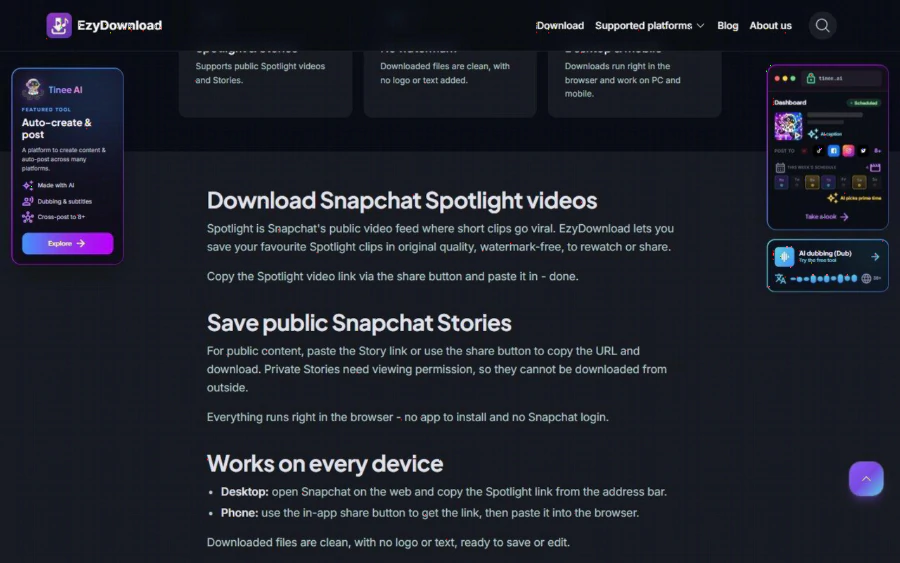
EzyDownload Snapchat page explaining how to save public Spotlight videos and Stories, with steps for phone and desktop
Step 4: Pick a format. For a video review, MP4 at 720p was enough on her classroom projector and keeps the file small. If she only wants the audio of a coach explaining a drill, she can choose MP3 instead. Higher resolutions exist, but larger files take longer to move around on a school network.
Step 5: Name and file it at once. The coach saves each file as athlete or drill, then date, for example "hurdle-lead-leg-2026-03". A folder per week keeps the Monday review fast. Without a naming habit, a pile of downloads becomes the same mess she started with.
Where the Snapchat page fits in a review session
A good review session is short. She plays a clip at normal speed once, then again slowly, and asks the group one question: what changed between the first hurdle and the last? Because the files sit on the laptop, there is no buffering and no autoplay of unrelated videos, and no one wanders off into the feed.
For a sprinter, she might line up two clips of the same start. For a jumper, she might compare a run-up from the beginning of the season with one from last week. None of this needs fancy software. It needs clips that open reliably, which is the whole point of having them offline.
What works well
- Nothing to pay or register. The site says there is no charge and no sign-up, which suits a volunteer budget.
- Clean files. The Snapchat page says downloads carry no logo or text, which makes clips easier to use in a private review.
- Phone and desktop. The page describes both workflows, so a coach can grab a link on the sideline and download later at home.
- Format choice. You see the video and audio options and pick one, instead of accepting whatever default a tool imposes.
Where it falls short
- Public clips only. The page says private Stories need viewing permission and cannot be downloaded from outside. Nothing behind a login, a paywall or DRM is handled by this tool.
- Copyright is your responsibility. EzyDownload cannot judge what you may keep. Saving a clip without the right to can breach platform terms or a creator's rights, and that risk is yours. Use it for your own material, for clips shared with permission, and for content that is openly licensed. We do not suggest using it to copy or redistribute work that belongs to someone else.
- One link at a time. There is no batch queue described on the page. A coach who wants fifty clips will paste fifty links.
- Unclear Snapchat-specific limits. The page does not state file size or length limits for Snapchat. If a long clip fails, try a shorter one before blaming your connection.
- Side promotions. Panels and a pop-up advertise Tinee AI, a separate product that has nothing to do with saving clips.
Is it right for your club?
It fits coaches, parents and small clubs that want the odd offline copy of a public clip they may keep, and would rather use a browser tab than install software. It also suits an athlete who wants to keep a personal best that she posted herself.
It does not suit anyone who needs large scheduled archives, private content or a way around copyright. A club with hundreds of hours of match footage is better served by a proper storage service and written consent from everyone filmed. If minors appear in the footage, check your club's own rules on filming and sharing before you save anything.
How to try it this week
Pick one public clip you are allowed to keep, perhaps a drill one of your own athletes posted. Copy its link, paste it into EzyDownload, choose 720p MP4 and download it. Play the file on the machine you really use for review. If the athlete's form is easy to see, you are done. If it looks soft, step up one resolution and repeat. You can also look at the main site to see the full list of supported platforms before deciding whether it fits your routine.
Then keep the habit small: one folder, one clip per teaching point, clear names. The tool will not improve anyone's stride. It only removes one obstacle between a good clip and the person who can learn from it, which is often all a coaching routine needs.